GPT Image 2 Prompts: Ready-to-Use Templates for High-Quality AI Images
GPT Image 2 is designed for a new type of image generation: not just visuals, but images that include accurate text, structured layouts, and real-world formats. This page collects 35+ GPT Image 2 prompt templates across different use cases, including social content, tutorials, brand assets, and multi-panel compositions. Each prompt is ready to copy, edit, and reuse. On Mew Design, you can try GPT Image 2 for free. Simply start your prompt with “use gpt-image-2”, and the AI design agent will generate images that match your intent.
AI images generated using GPT Image 2 on Mew Design
36 GPT Image 2 Prompt Templates for Real-World Image Generation
Below is a curated collection of GPT Image 2 prompts designed for practical use cases. These examples show how to generate realistic UI screenshots, before-and-after comparisons, infographics, and structured visual content with clear text and layout control.
GPT Image 2 Reddit Startup Launch Thread
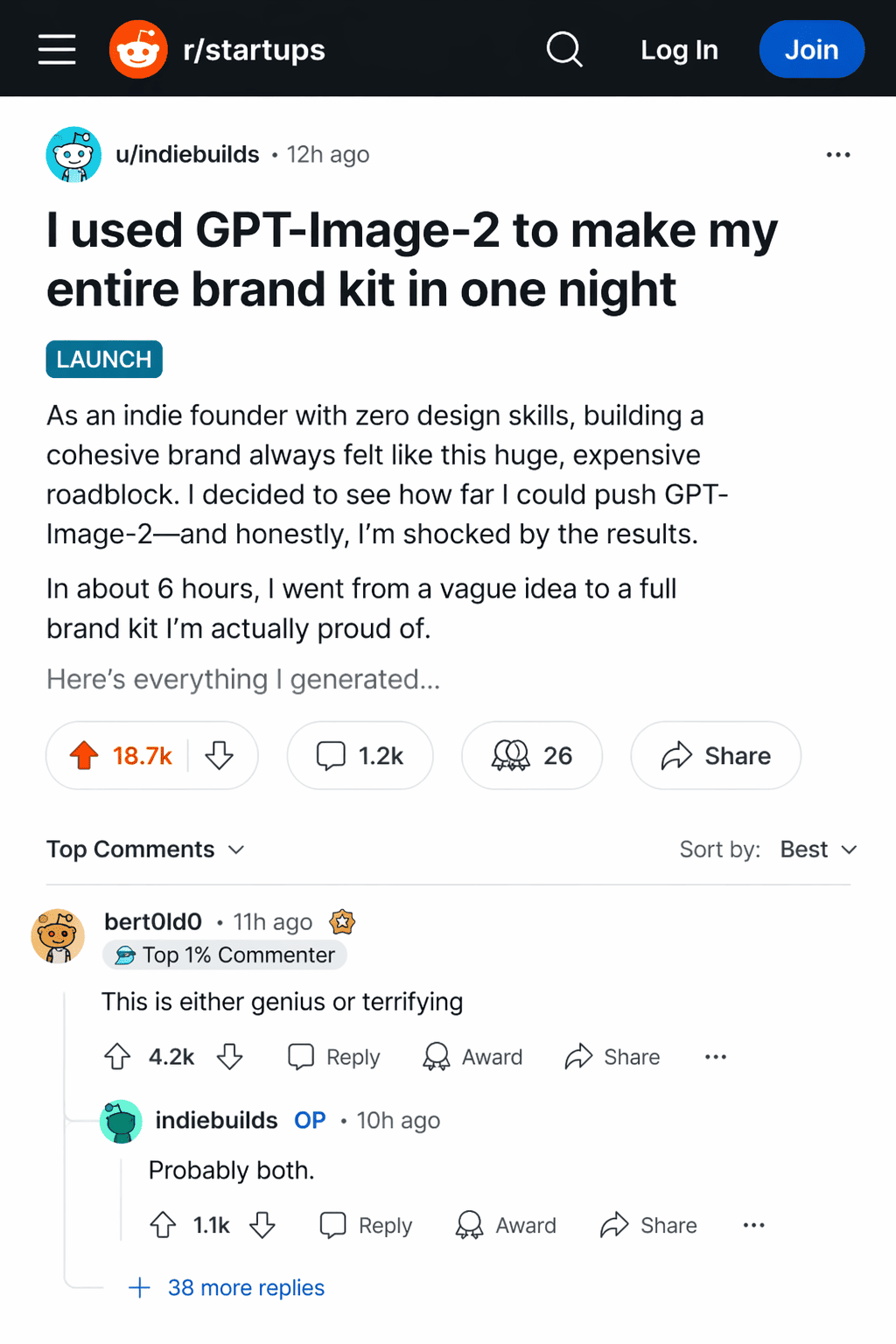
use gpt-image-2. Create a realistic Reddit-style launch thread screenshot. Title text: "I used GPT-Image-2 to make my entire brand kit in one night". Show upvotes "18.7k", awards icons, short body preview, and a top comment that says "This is either genius or terrifying". Use believable subreddit header styling, clean comment nesting, readable interface text, and authentic thread spacing. ratio 4:5
GPT Image 2 Instagram Story Product Leak
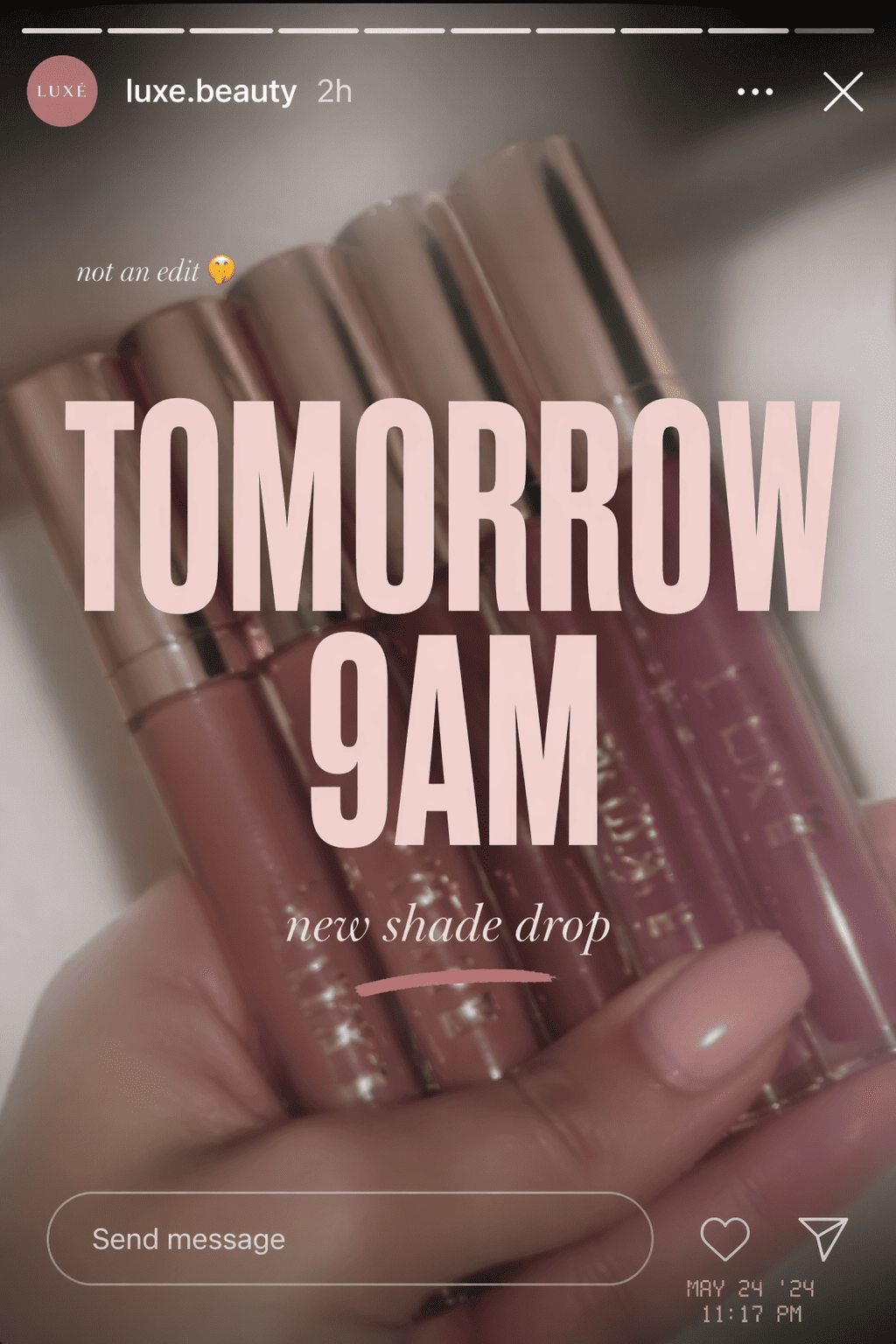
use gpt-image-2. Create a leaked-looking Instagram Story screenshot for a beauty brand teaser. Large overlaid text must read "TOMORROW 9AM". Add smaller text "new shade drop". Show a blurred hand holding unreleased lip glosses, story progress bars, subtle reaction prompt, tiny timestamp, and polished story interface details. Make it feel like a screenshot fans would repost before a launch. ratio 9:16
GPT Image 2 Breaking News Front Page
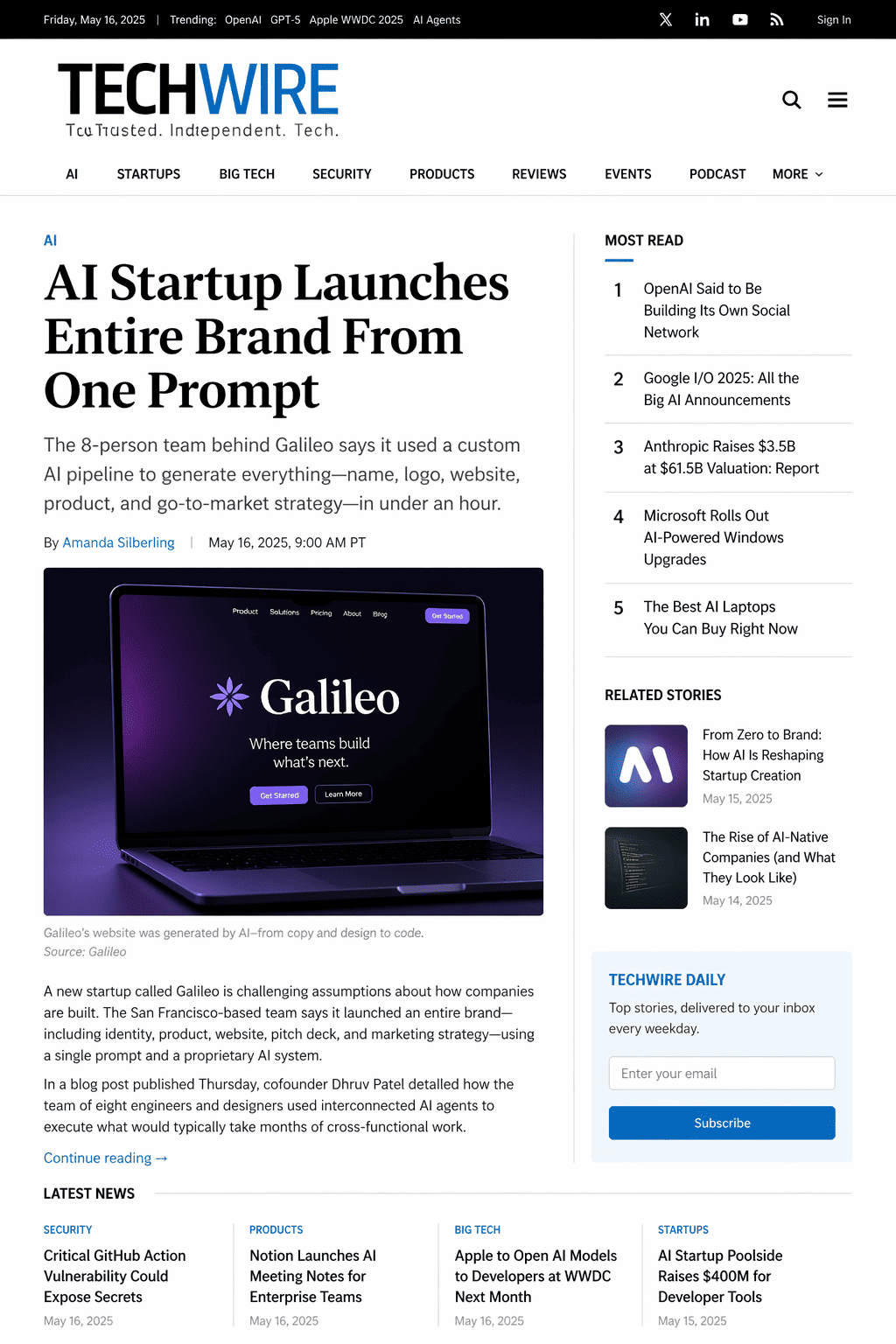
use gpt-image-2. Create a believable digital news front page screenshot for a tech publication. Headline must read "AI Startup Launches Entire Brand From One Prompt". Add a smaller subhead, one hero image, two short related-story teasers in the sidebar, a navigation bar, and a realistic publication layout. Make the typography sharp, the structure editorial, and the whole page look like a real news homepage people would screenshot and share. ratio 4:5
GPT Image 2 Bedroom Before After Makeover
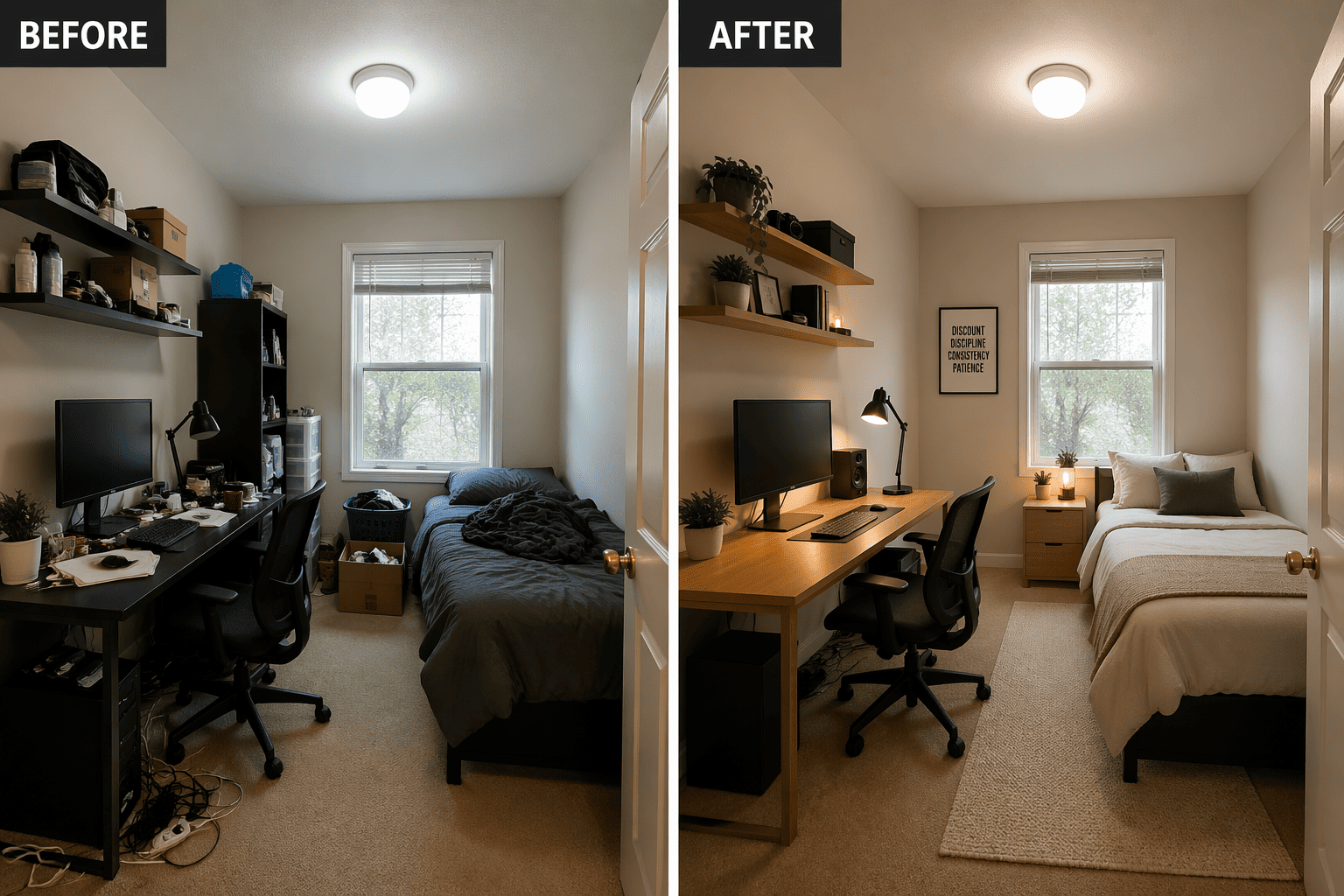
use gpt-image-2. Create a split-screen before-and-after room transformation. Left panel labeled "BEFORE": cluttered small bedroom with messy desk, tangled cables, harsh ceiling light, and random storage boxes. Right panel labeled "AFTER": the exact same room turned into a warm minimalist creator studio with oak desk, framed print, soft lamp light, neutral bedding, and clean shelves. Preserve room geometry and window position exactly. ratio 16:9
GPT Image 2 Storefront Rebrand Before After
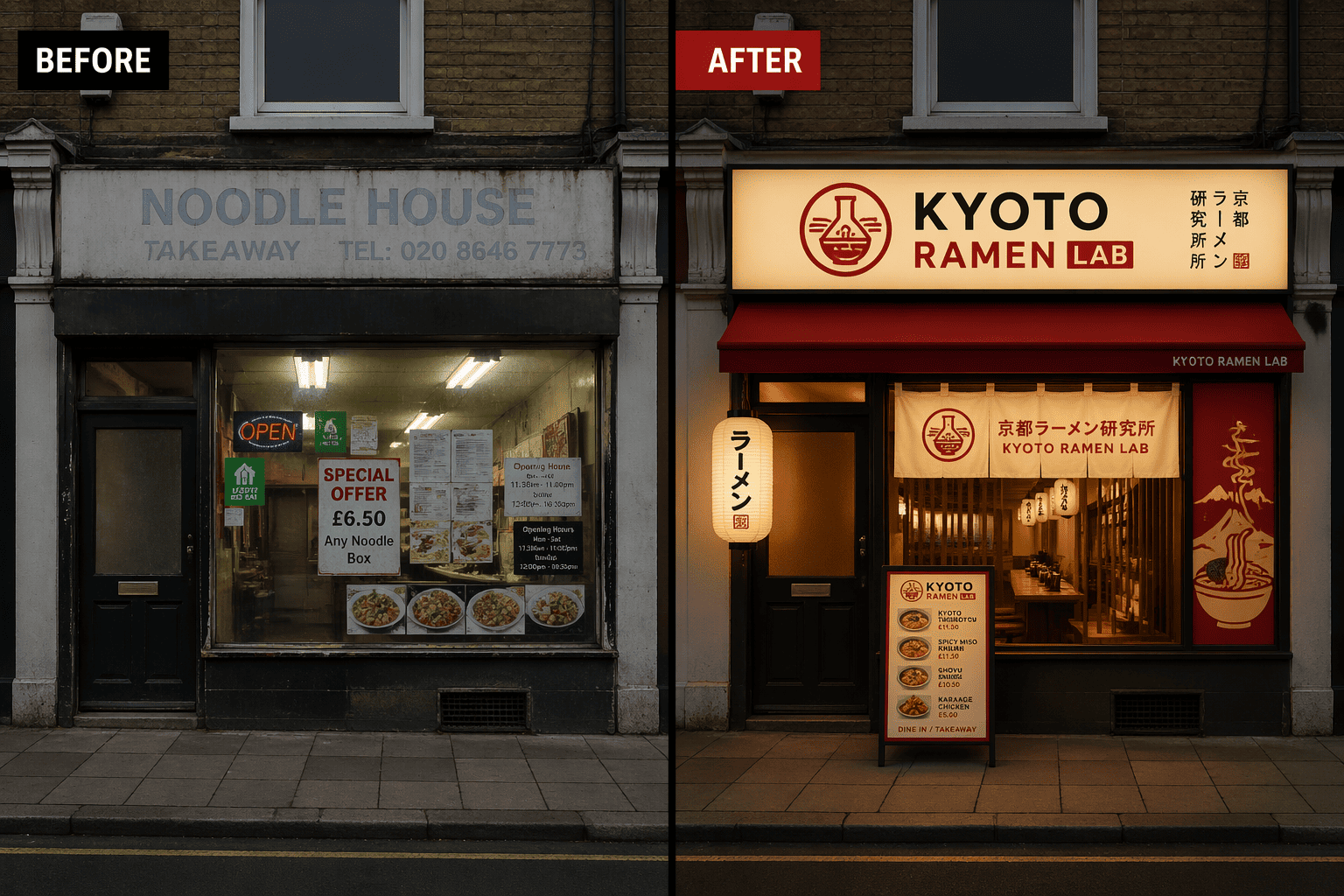
use gpt-image-2. Create a storefront before-and-after transformation image. Left panel labeled "BEFORE": a generic takeaway shop with faded signage, cluttered windows, and poor lighting. Right panel labeled "AFTER": the same storefront rebranded as "KYOTO RAMEN LAB" with modern signage, paper lantern glow, a menu board, and a cohesive red-and-cream brand system. Keep the architecture identical across both panels. ratio 16:9
GPT Image 2 Selfie To Editorial Glow Up
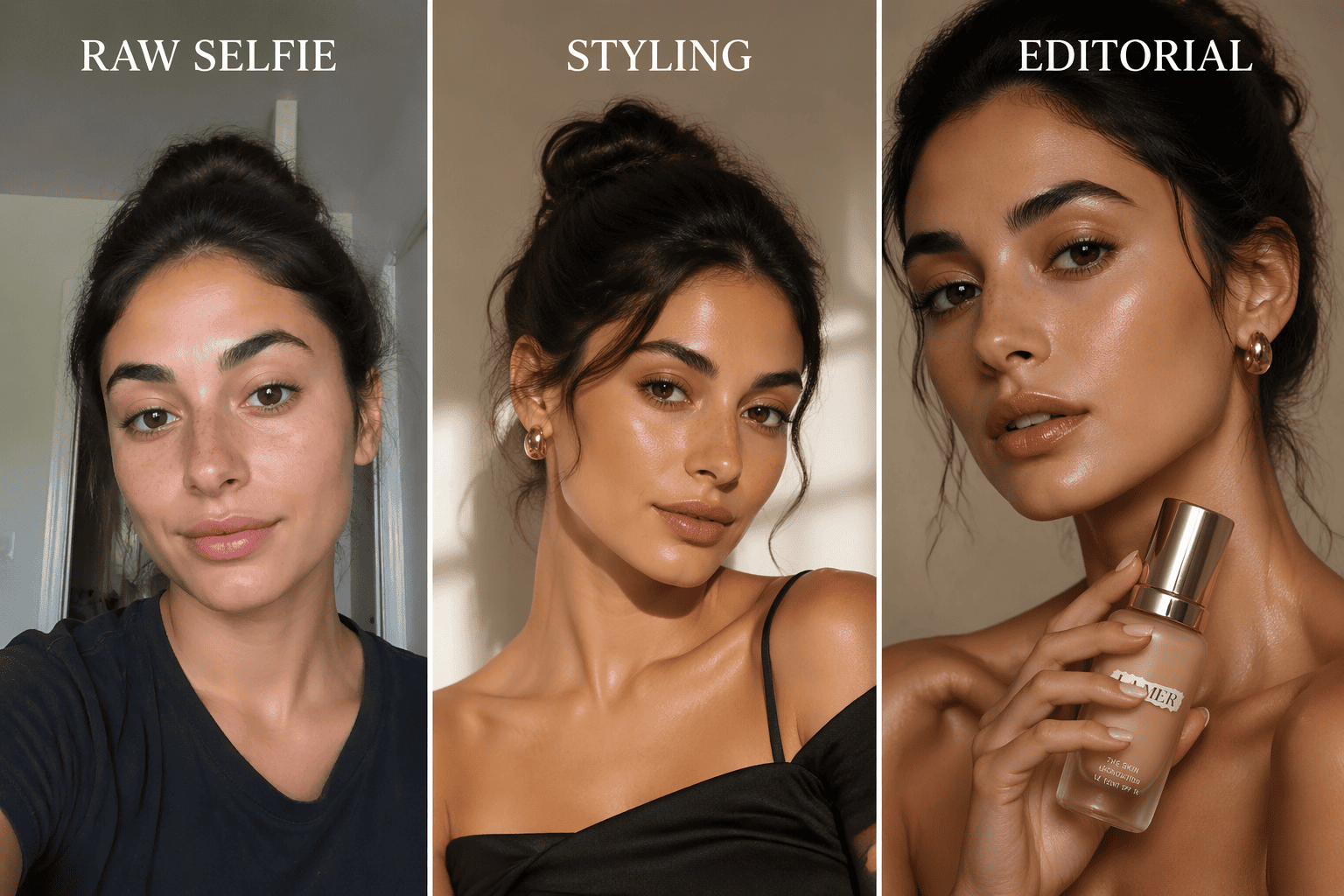
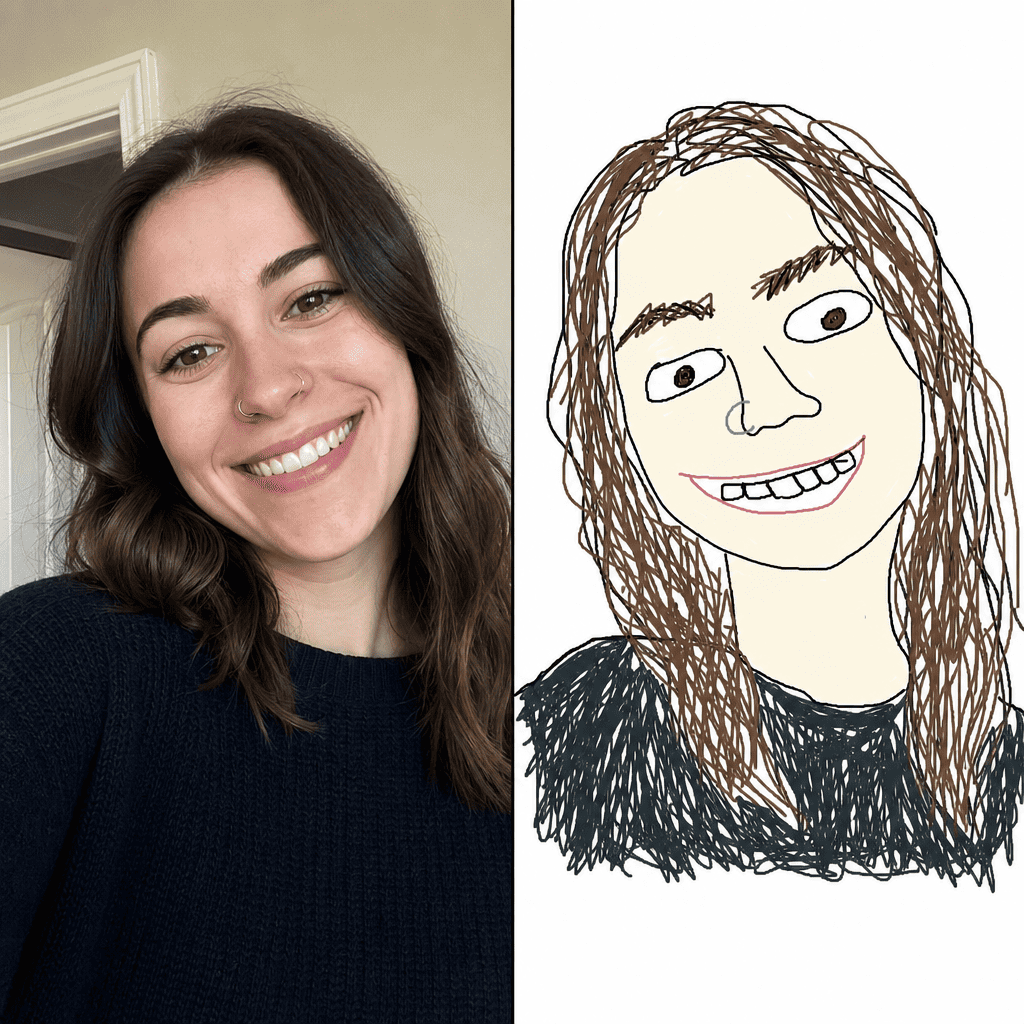
use gpt-image-2. Create a three-panel progression showing an ordinary phone selfie transformed into a beauty editorial image. Panel labels: "RAW SELFIE", "STYLING", and "EDITORIAL". Keep the same person recognizable across all three panels while upgrading wardrobe, lighting, pose, and composition step by step. Make the final result look like a real luxury beauty campaign image. ratio 16:9
GPT Image 2 Packaging Redesign Before After
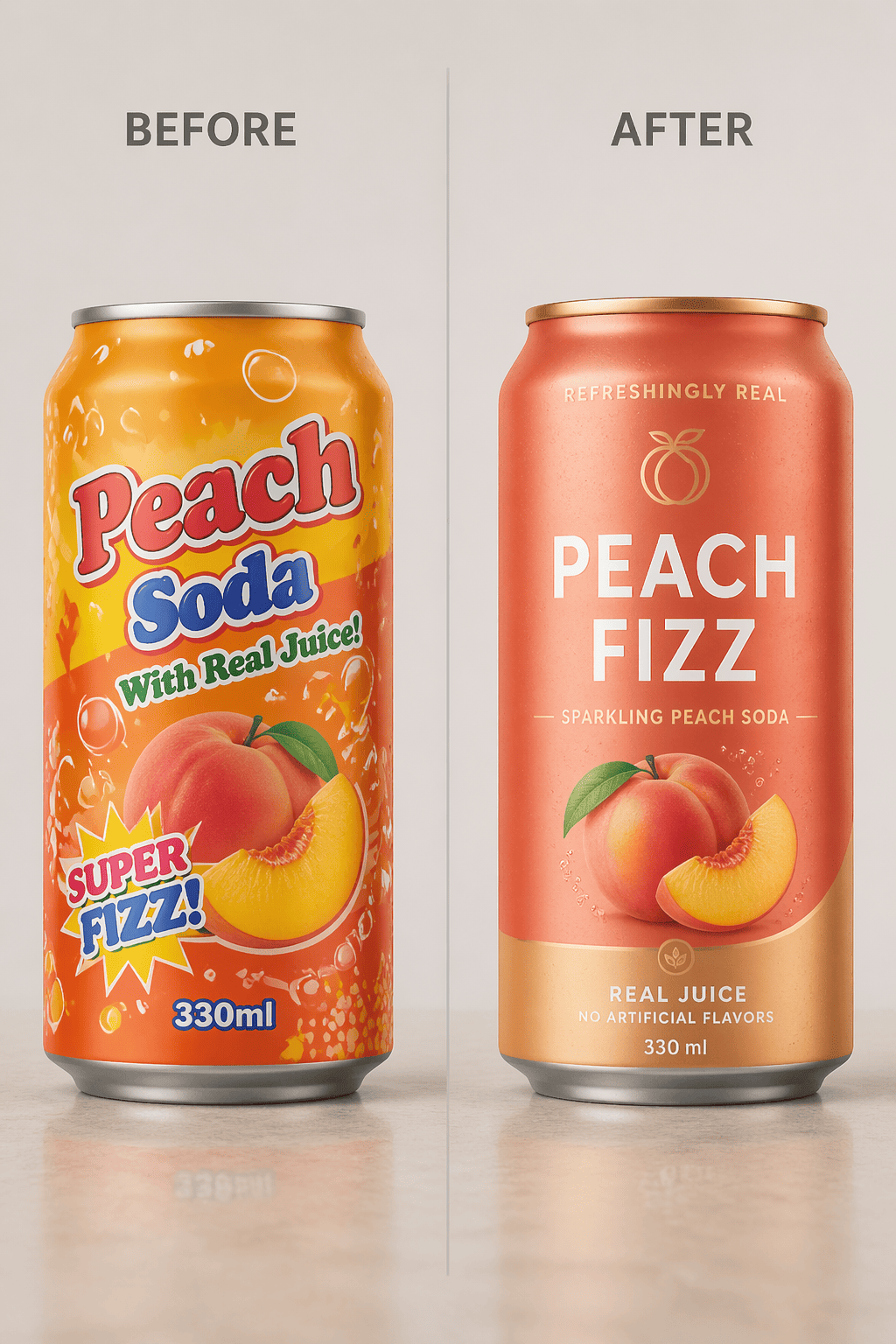
use gpt-image-2. Create a packaging redesign comparison for a canned peach soda. Left panel labeled "BEFORE": cheap generic can design with cluttered graphics and weak typography. Right panel labeled "AFTER": a premium modern can reading "PEACH FIZZ" with clean flavor hierarchy, metallic finish, strong color system, and shelf-ready branding. Show both cans on the same studio surface with consistent lighting. ratio 4:5
GPT Image 2 Rooftop Pop Up Cafe Transformation
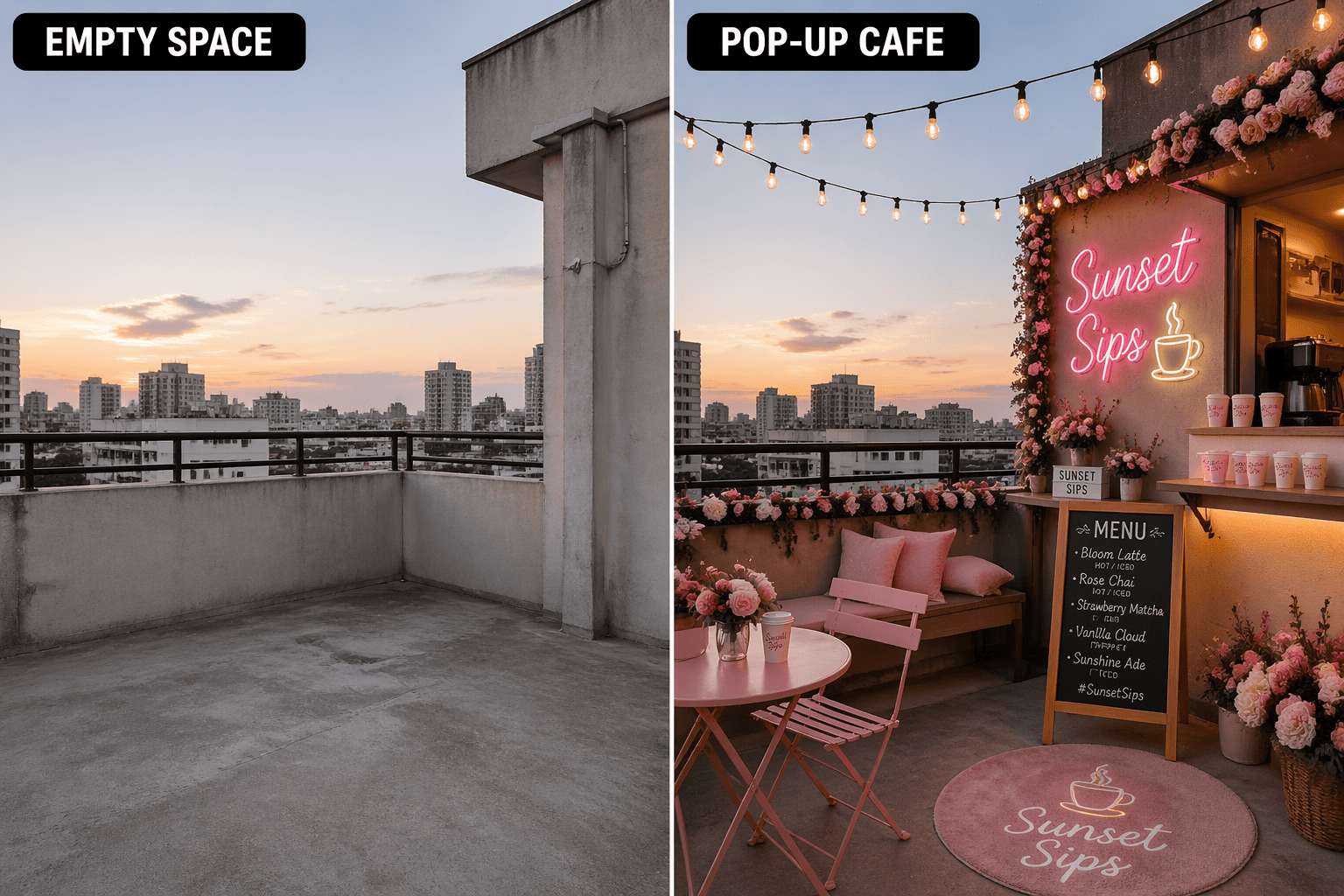
use gpt-image-2. Create a before-and-after rooftop transformation. Left panel labeled "EMPTY SPACE": a blank concrete rooftop corner with plain railing and no decor. Right panel labeled "POP-UP CAFE": the same rooftop transformed into a photogenic seasonal café with neon sign, branded cups, floral seating, menu board, and string lights. Preserve viewpoint and structure while changing only the concept and styling. ratio 16:9
GPT Image 2 Real Estate Staging Before After
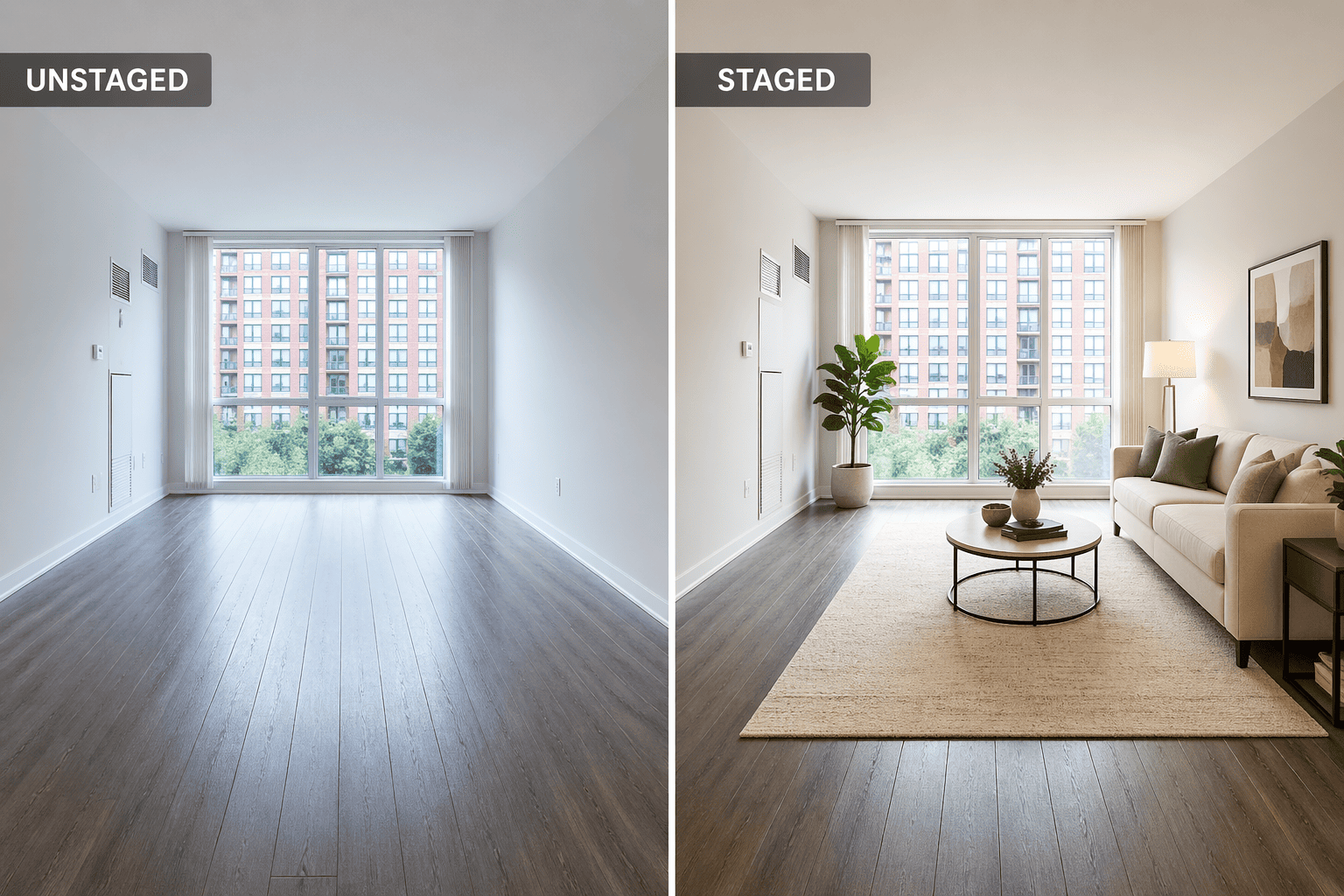
use gpt-image-2. Create a real-estate-style before-and-after staging image. Left panel labeled "UNSTAGED": an empty apartment living room with cold lighting and no furniture. Right panel labeled "STAGED": the exact same room styled as a high-end rental listing with sofa, rug, plant, coffee table, warm wall art, and natural daylight enhancement. Keep walls, windows, and room proportions identical. ratio 16:9
GPT Image 2 Notes To Slides Tutorial Card
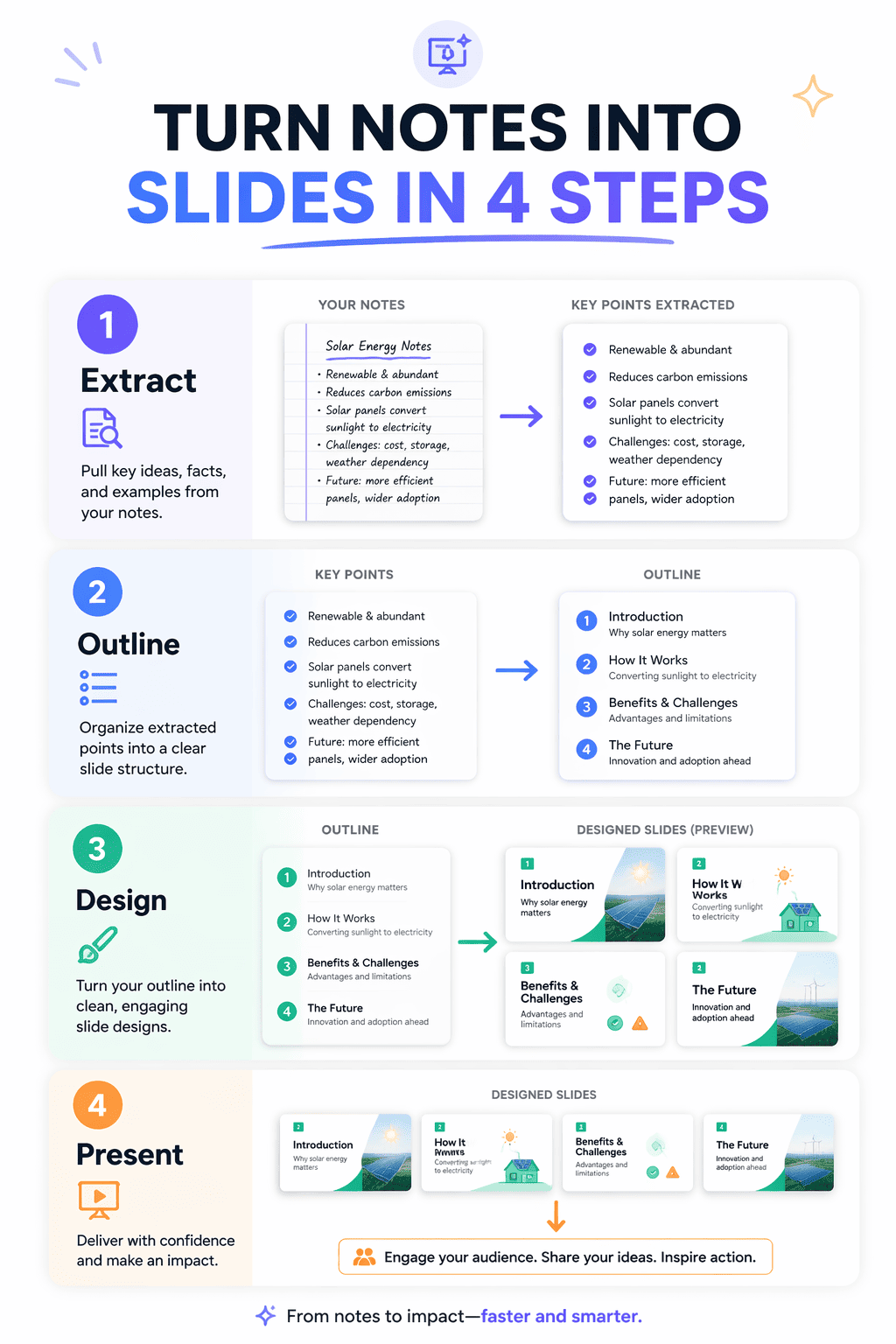
use gpt-image-2. Create a polished educational card titled "TURN NOTES INTO SLIDES IN 4 STEPS". Show four numbered blocks with exact headings "Extract", "Outline", "Design", and "Present". Add tiny visual previews of notes becoming slide thumbnails, clean arrows, and concise readable supporting text. Make it look like a modern productivity or creator carousel graphic. ratio 4:5
GPT Image 2 Matcha Recipe Social Infographic
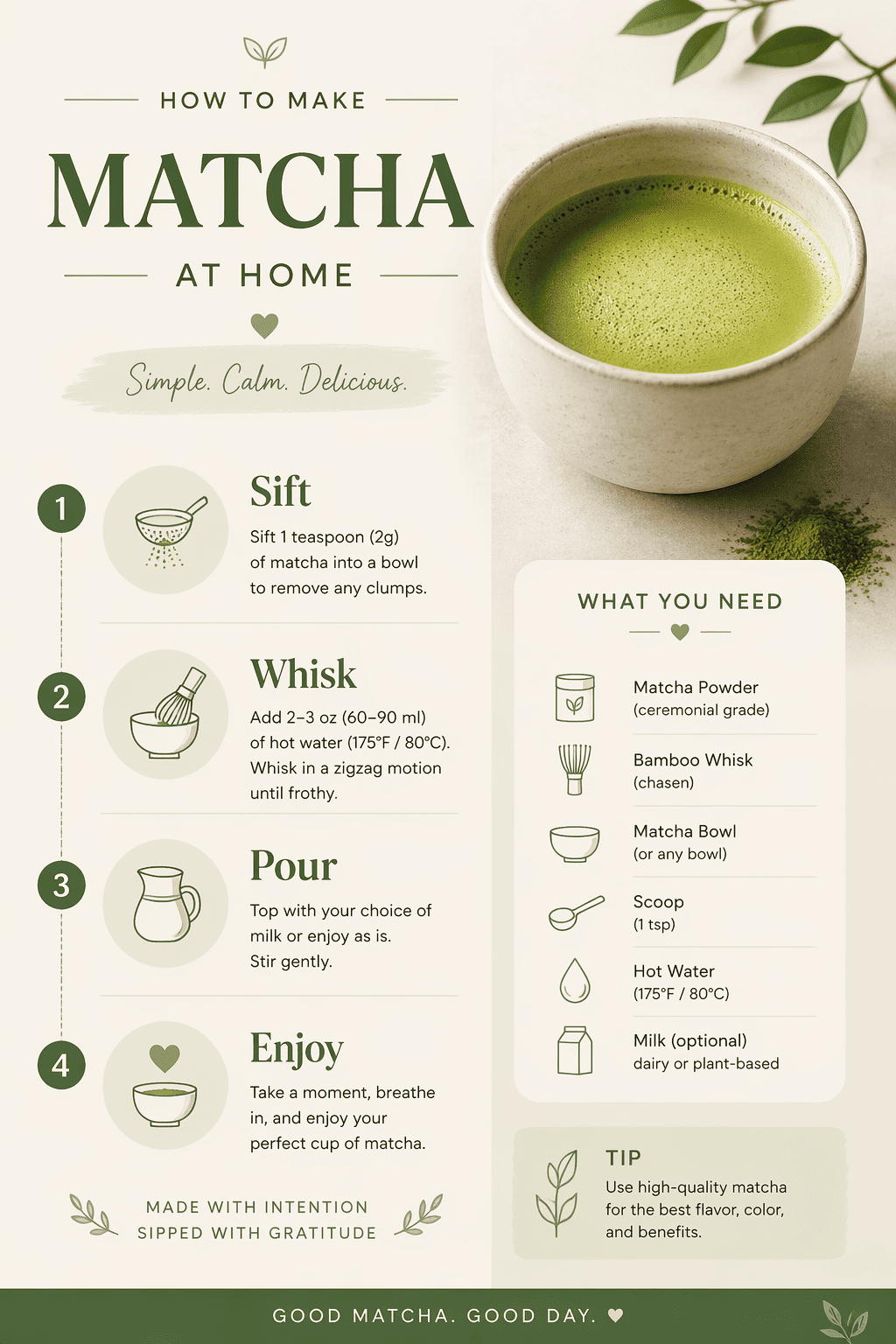
use gpt-image-2. Create a vertical saveable recipe card titled "HOW TO MAKE MATCHA AT HOME". Show four steps with clear headers "Sift", "Whisk", "Pour", and "Enjoy". Add a small tools list titled "What you need", minimal icons, one hero matcha cup image, and clean lifestyle typography. Make it look like a Pinterest-ready or Instagram-save recipe infographic. ratio 3:4
GPT Image 2 Startup Branding Checklist Card
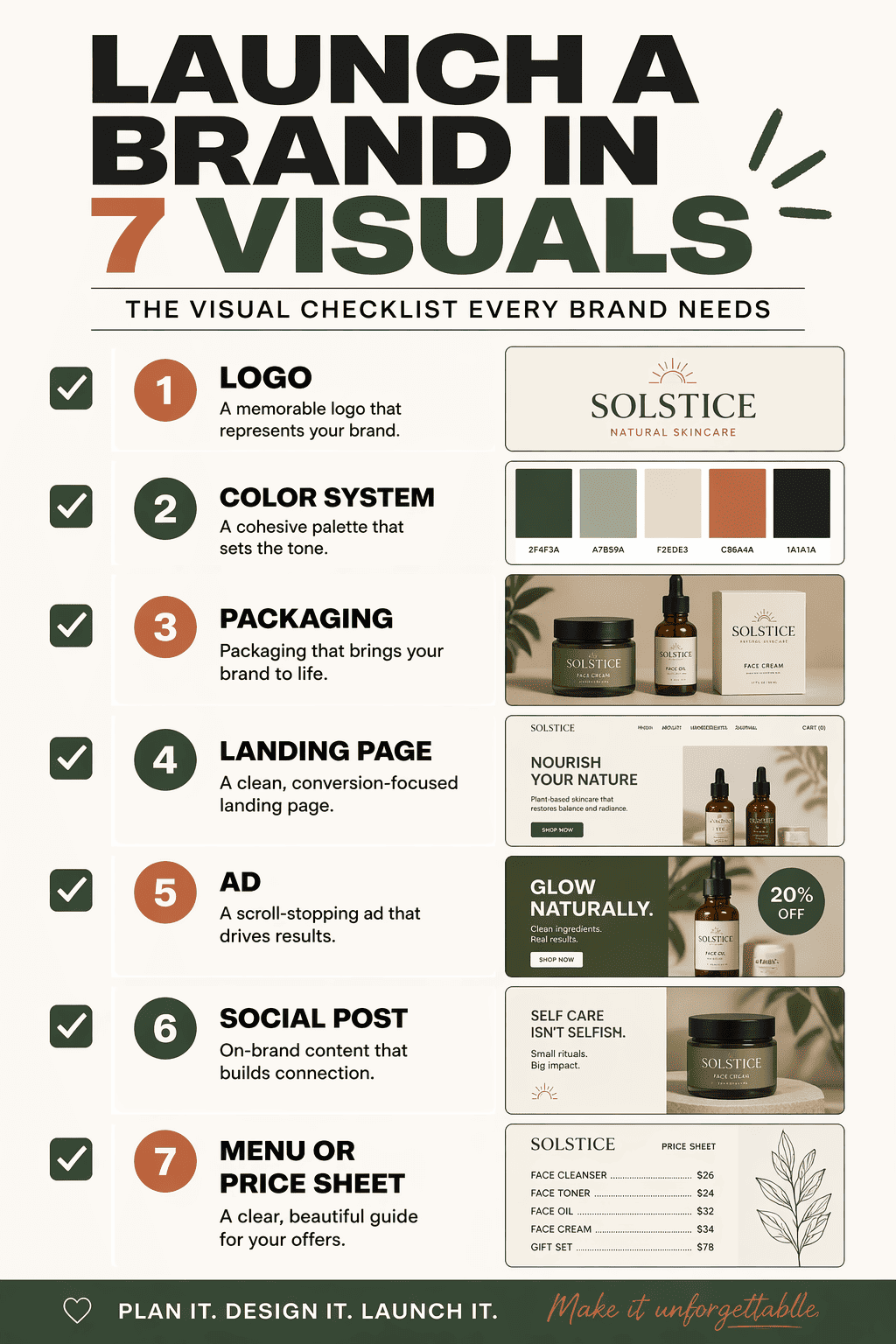
use gpt-image-2. Create a creator-style checklist graphic with the headline "LAUNCH A BRAND IN 7 VISUALS". Show seven short checklist items in a tidy editorial layout: logo, color system, packaging, landing page, ad, social post, and menu or price sheet. Add small thumbnail mockups beside the list and use bold readable typography designed for social sharing. ratio 4:5
How to Use GPT Image 2 Prompts on Mew Design
You don’t need to start from scratch — copy a prompt, adjust a few details, and generate results that are ready for sharing or publishing.
Start with a prompt
Copy any GPT Image 2 prompt from this page or write your own. Pay attention to add “use gpt-image-2” at the beginning, then paste it into Mew Design. This ensures the system uses GPT Image 2 for your request.
Generate your image with GPT Image 2 model
Click generate. You can create a single image, a multi-panel layout, or a full visual series. Just explain your intent clearly — the agent will handle the structure.
Edit and refine
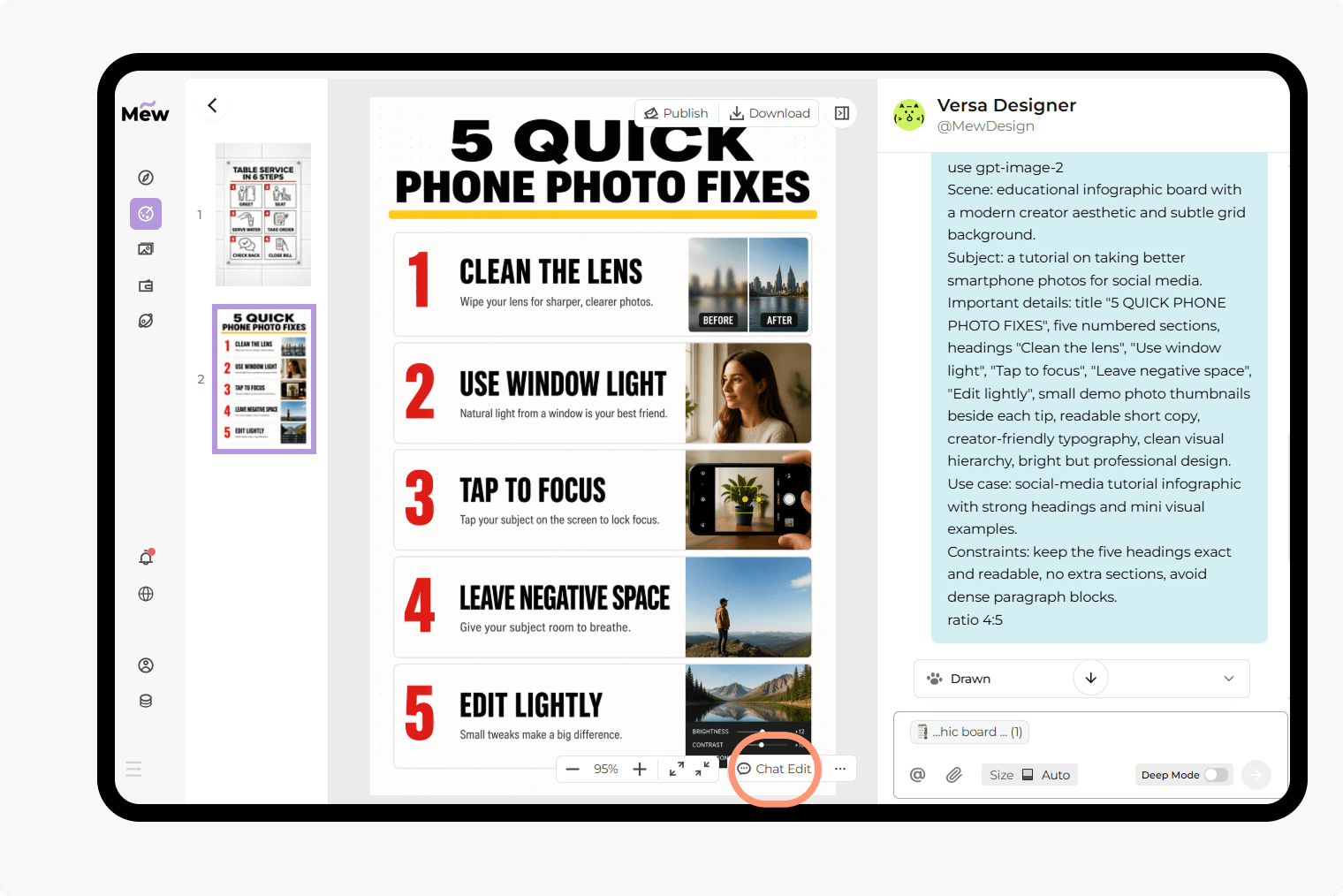
If the first result is not exactly what you want, use Chat Edit to adjust the prompt. You can, fix text content, change layout or style, or refine details step by step.
Export or share
Once your image is ready, download it in high quality. Your output can be used for, social media, presentations, product visuals, and marketing assets.
Why Use Mew Design with GPT Image 2 for AI Image Generation
Accurate text rendering in images
GPT Image 2 is built to generate readable, well-placed text inside images. This makes it ideal for posters, UI mockups, and social content where typography matters.
Built for structured layouts
From infographics to multi-panel scenes, GPT Image 2 can follow layout instructions clearly. You can define sections, labels, and visual hierarchy directly in your prompt.
One prompt, complete visual output
Instead of combining multiple tools, you can generate full assets — including content, layout, and styling — in one step.
AI design agent that adapts to your task
On Mew Design, you don’t need to switch between tools. The agent selects the right model and workflow based on your input.
Easy iteration with Chat Edit
You can refine images through conversation. Adjust text, layout, or style without rewriting the entire prompt.
Works across real use cases
These GPT Image 2 prompts are not just for experiments. You can create social media content, tutorials and guides, product visuals, and brand assets. All ready to use or publish.
FAQs
They are structured text instructions used to generate images with GPT Image 2. These prompts can include layout, text content, style, and composition.
GPT Image 2 is especially strong at generating images with clear text and structured layouts, such as screenshots, infographics, and multi-panel designs.
Yes. You can try GPT Image 2 directly on Mew Design. Just add “use gpt-image-2” at the start of your prompt.
No. The GPT Image 2 templates are ready to use. You can copy, edit a few details, and generate results quickly.
Yes. You can change text, layout, colors, or style based on your needs. GPT Image 2 responds well to detailed instructions.